Raw Data Download
This guide describes how to download the raw data of your measurements from the Data Manager. Raw data is provided file by file instead of as a single bundled archive, which scales to datasets of any size and lets you resume interrupted downloads.
Process
- Create a personal access token (PAT).
- List the files of a measurement (the manifest).
- Download the files — individually or in parallel.
- Reconstruct the dataset tree on your machine.
Personal access token
Before you can begin with downloading any data via HTTPS, you need to tell the download server who you are. We enforce a token-based authentication (personal access token: PAT) so you are not required to expose your password to anyone or to any system.
multiple tokens
You can create as many tokens as you like, however consider them as a secret.
Generate a token
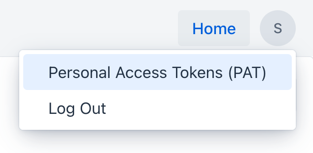
First of all, navigate to your PAT overview page in your profile overview (top-right corner)
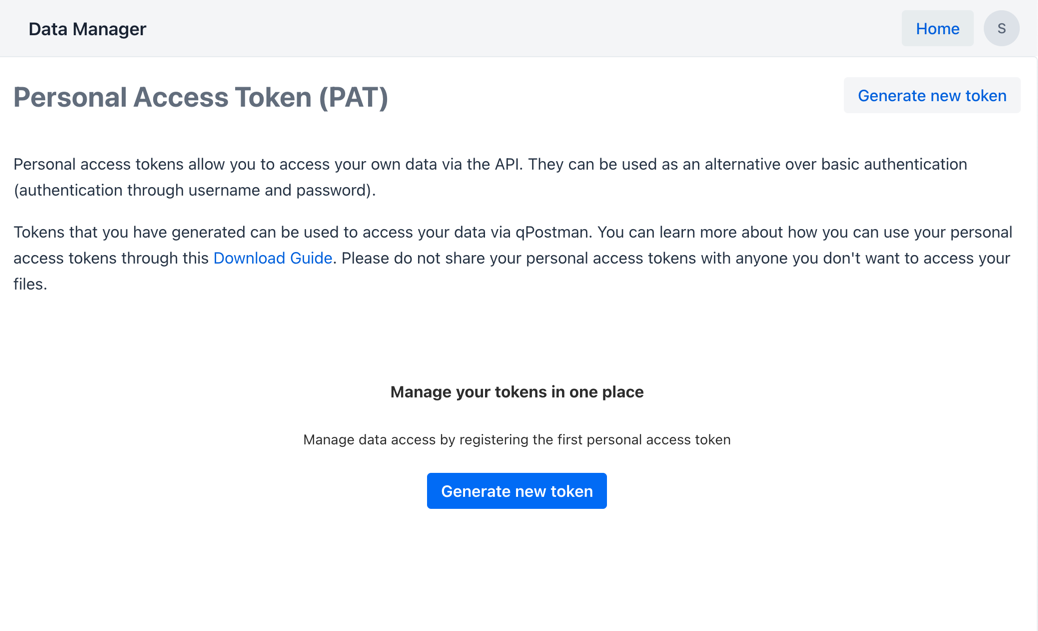
You should now be able to see the PAT token overview page:
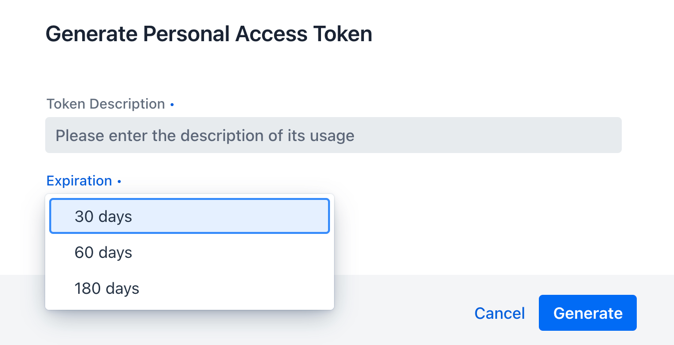
Personal access tokens have a life-time, which can be set based on your requirements. Your token expires automatically, there is nothing you have to do manually.
Token accessibility
A generated token will be only visible in its raw notation once! Make sure to store it safely in your local password manager, you will not be able to access the token value again.
Manage tokens
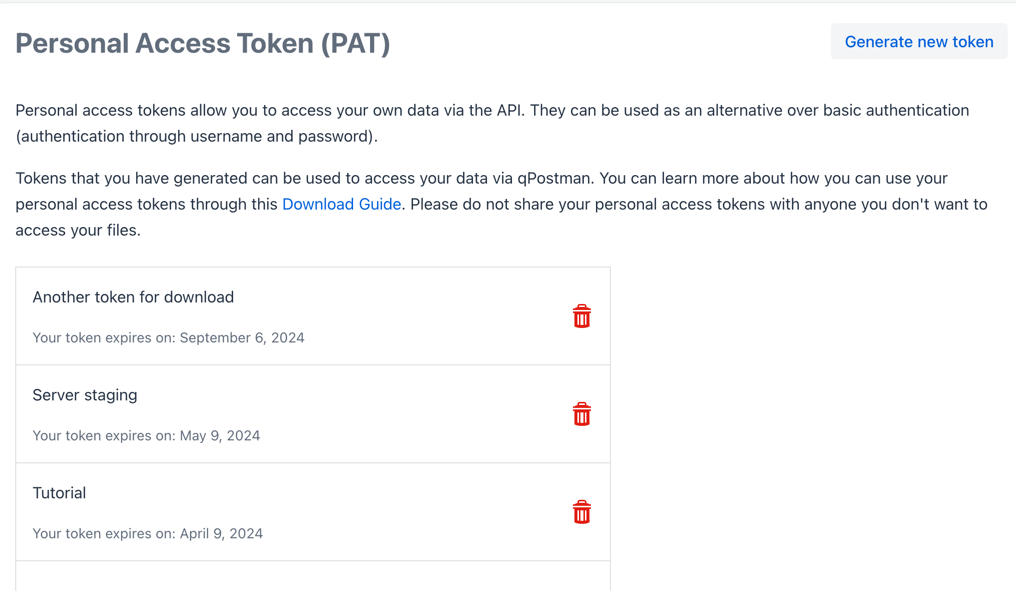
You can see your created tokens in the overview, however since they are instantly encrypted after generation, you cannot access the actual token text anymore. We encourage you to use meaningful descriptions for your tokens, so you remember for what purpose you have created them.
Token security
If you are unsure, if your PAT got exposed or shared with untrusted parties, delete them right away. You can create new, safe tokens at any time.
List the files of a measurement
To download the raw data of a measurement, first request its file manifest to learn which files it contains:
curl -H "Authorization: Bearer <ACCESS_TOKEN>" \
  https://download.qbic.uni-tuebingen.de/measurements/<MEASUREMENT_ID>/files
The response lists every file of the measurement together with a ready-to-use download URL per file, e.g.:
{
    "measurementId": "MSQ7645002AL-182987406699583",
    "files": [
        {
            "index": 0,
            "path": "raw_data/reads.fastq.gz",
            "fileName": "reads.fastq.gz",
            "length": 828008868,
            "crc32": 1923767687,
            "registrationTime": "2024-09-03T10:15:30Z",
            "_links": {
                "download": {
                    "href": "https://download.qbic.uni-tuebingen.de/measurements/MSQ7645002AL-182987406699583/files/0"
                }
            }
        },
        {
            "index": 1,
            "path": "metadata/sample_info.csv",
            "fileName": "sample_info.csv",
            "length": 2048,
            "crc32": 3847561023,
            "registrationTime": "2024-09-03T10:15:35Z",
            "_links": {
                "download": {
                    "href": "https://download.qbic.uni-tuebingen.de/measurements/MSQ7645002AL-182987406699583/files/1"
                }
            }
        }
    ]
}
For each file, the manifest provides:
- its index, used to address the file during download, and
- a ready-to-use download URL in its
_links.download.hreffield.
Field-level details
The types, descriptions and examples of every manifest field are documented in the Swagger UI / OpenAPI document, which serve as the single source of truth for this schema.
Download the files
All download endpoints require basic command line/terminal knowledge. The data will be downloaded into the directory in which the command is run — please ensure it is the correct directory and has enough free space before running the download.
We show the two popular command line clients cURL and GNU Wget, of course you can use any other software that supports HTTP.
Directory structure is not preserved automatically
When downloading files individually or in parallel, the original directory structure of the dataset is not preserved. All files are saved to your current working directory, regardless of their original location within the dataset.
If your dataset contains files organized in subdirectories (e.g., raw_data/reads.fastq.gz and
metadata/sample_info.csv), they will all end up in the same directory after download.
To restore the original structure, you need to use a script that reads each file's path field
from the manifest and recreates the directory tree locally. See
Reconstruct the dataset tree locally for details.
Download a single file
Download a single file via its download URL (the value of _links.download.href from the manifest)
as the FILE_URL:
curl -OJ -H "Authorization: Bearer <ACCESS_TOKEN>" <FILE_URL>
wget --content-disposition --trust-server-names --header "Authorization: Bearer <ACCESS_TOKEN>" <FILE_URL>
For example, to download the first file of measurement MSQ7645002AL-182987406699583 (the file raw_data/reads.fastq.gz):
curl -OJ -H "Authorization: Bearer v71E00f750Z78oBW4SKs90Vrd39h98eG" https://download.qbic.uni-tuebingen.de/measurements/MSQ7645002AL-182987406699583/files/0
wget --content-disposition --trust-server-names --header "Authorization: Bearer v71E00f750Z78oBW4SKs90Vrd39h98eG" https://download.qbic.uni-tuebingen.de/measurements/MSQ7645002AL-182987406699583/files/0
Resuming interrupted downloads
Large file downloads can be interrupted due to network issues, timeouts, or manual cancellation. The download API supports HTTP byte range requests, allowing you to resume downloads from where they left off instead of starting over.
Using curl to resume downloads
curl can automatically resume interrupted downloads using the -C - (continue) flag:
curl -C - -OJ -H "Authorization: Bearer <ACCESS_TOKEN>" <FILE_URL>
The -C - flag tells curl to automatically determine where the download was interrupted and resume from that byte offset.
Example workflow:
-
Start the download:
curl -OJ -H "Authorization: Bearer v71E00f750Z78oBW4SKs90Vrd39h98eG" https://download.qbic.uni-tuebingen.de/measurements/MSQ7645002AL-182987406699583/files/0 -
If the download is interrupted (e.g., network failure), simply run the same command with
-C -:curl -C - -OJ -H "Authorization: Bearer v71E00f750Z78oBW4SKs90Vrd39h98eG" https://download.qbic.uni-tuebingen.de/measurements/MSQ7645002AL-182987406699583/files/0
Using wget to resume downloads
wget supports resuming with the -c (continue) flag:
wget -c --content-disposition --trust-server-names --header "Authorization: Bearer <ACCESS_TOKEN>" <FILE_URL>
Example workflow:
-
Start the download:
wget --content-disposition --trust-server-names --header "Authorization: Bearer v71E00f750Z78oBW4SKs90Vrd39h98eG" https://download.qbic.uni-tuebingen.de/measurements/MSQ7645002AL-182987406699583/files/0 -
If interrupted, resume with
-c:wget -c --content-disposition --trust-server-names --header "Authorization: Bearer v71E00f750Z78oBW4SKs90Vrd39h98eG" https://download.qbic.uni-tuebingen.de/measurements/MSQ7645002AL-182987406699583/files/0
Manual byte range requests
For advanced use cases, you can manually specify byte ranges using the Range header:
curl -H "Range: bytes=1000-" -OJ -H "Authorization: Bearer <ACCESS_TOKEN>" <FILE_URL>
This requests the file starting from byte 1000 to the end. You can also specify end ranges:
curl -H "Range: bytes=0-999" -OJ -H "Authorization: Bearer <ACCESS_TOKEN>" <FILE_URL>
This downloads only the first 1000 bytes (bytes 0-999).
Checking file size before download
You can check the total file size before downloading by using a HEAD request:
curl -I -H "Authorization: Bearer <ACCESS_TOKEN>" <FILE_URL>
Look for the Content-Length header in the response to see the total file size in bytes.
Download multiple files in parallel
To download all files of a measurement in one command, put all file URLs (the
_links.download.href values of the manifest) into a text file — one URL per line.
To download the files of multiple measurements, combine the file URLs of their respective
manifests in the same text file.
<FILE_URL_1>
<FILE_URL_2>
Warning
To ensure character validity in the text file, please format it in the UTF-8 format.
Then adapt the command accordingly:
curl --remote-name-all -OJ -H "Authorization: Bearer <ACCESS_TOKEN>" $(cat <file-with-urls>)
wget --content-disposition --trust-server-names --header "Authorization: Bearer <ACCESS_TOKEN>" -i <file-with-urls>
Reconstruct the dataset tree locally
When you download files individually or in parallel, they are saved to your current working directory without preserving the original directory structure. If the dataset contains multiple files organized in subdirectories, you may want to reconstruct the original tree locally — for example, to run analysis pipelines that expect a specific file layout, or to keep the data organized as it was on the server.
Example: Before and after download
Original dataset on the server:
MSQ7645002AL-182987406699583/
├── raw_data/
│   └── reads.fastq.gz
└── metadata/
    └── sample_info.csv
After downloading with curl -OJ (files land flat in your current directory):
./
├── reads.fastq.gz
└── sample_info.csv
The directory structure is lost. Both files are now in the same directory, and you can't tell which subdirectory they originally belonged to.
After tree reconstruction (restoring the original structure):
./MSQ7645002AL-182987406699583/
├── raw_data/
│   └── reads.fastq.gz
└── metadata/
    └── sample_info.csv
The original tree is restored, with the measurement ID as the root folder.
How to reconstruct the tree
Each file's path is the local path within the dataset. To reconstruct the original dataset tree locally, use the measurement id as the name of the root folder and restore every file under its path.
MEASUREMENT_ID   = "MSQ7645002AL-182987406699583"
ROOT_FOLDER      = ./data/<MEASUREMENT_ID>

for FILE in manifest.files:
    TARGET = ROOT_FOLDER + "/" + FILE.path

    createParentDirectories(TARGET)        # recreate the directory structure
    download(FILE._links.download.href, to = TARGET)   # store the file at its relative location
For the example manifest above, this produces:
| File | FILE.path |
TARGET (where it's saved) |
|---|---|---|
| 1 | raw_data/reads.fastq.gz |
./data/MSQ7645002AL-182987406699583/raw_data/reads.fastq.gz |
| 2 | metadata/sample_info.csv |
./data/MSQ7645002AL-182987406699583/metadata/sample_info.csv |
Resulting in:
./data/MSQ7645002AL-182987406699583/
├── raw_data/
│   └── reads.fastq.gz
└── metadata/
    └── sample_info.csv
Parallel & resumable downloads
Because every file is downloaded through its own URL, the file downloads (and the recreated
directory structure) can be parallelized, and interrupted downloads can be resumed per file via
the supported Range requests.
Legacy: download as ZIP archive
The endpoint GET /measurements/{measurementId} downloads a whole measurement as a single ZIP archive in one request:
curl -OJ -H "Authorization: Bearer <ACCESS_TOKEN>" https://download.qbic.uni-tuebingen.de/measurements/<MEASUREMENT_ID>
wget --content-disposition --trust-server-names --header "Authorization: Bearer <ACCESS_TOKEN>" https://download.qbic.uni-tuebingen.de/measurements/<MEASUREMENT_ID>
For example, to download measurement MSQ7645002AL-182987406699583 as a ZIP archive:
curl -OJ -H "Authorization: Bearer v71E00f750Z78oBW4SKs90Vrd39h98eG" https://download.qbic.uni-tuebingen.de/measurements/MSQ7645002AL-182987406699583
wget --content-disposition --trust-server-names --header "Authorization: Bearer v71E00f750Z78oBW4SKs90Vrd39h98eG" https://download.qbic.uni-tuebingen.de/measurements/MSQ7645002AL-182987406699583
Limitations of the ZIP archive endpoint
While this endpoint is still available, it has significant limitations compared to the file-based download:
- No resume support: If the download is interrupted, you must start over from the beginning. The file-based endpoints support HTTP byte range requests for resuming interrupted downloads (see Resuming interrupted downloads).
- Not recommended for large datasets: For datasets larger than 20 GB, use the file-based download workflow instead. The download is a single long-running stream. For very large datasets, the connection is more likely to be interrupted, and without resume support, you must restart the entire download from the beginning.
- No parallel downloads: The entire dataset is transferred as a single stream. The file-based endpoints allow downloading multiple files in parallel.
For better reliability and performance, especially with large datasets, use the file-based download workflow described above.